

Blog · · 5 min read
Music lesson scheduling week: plan the new term without the paper chaos
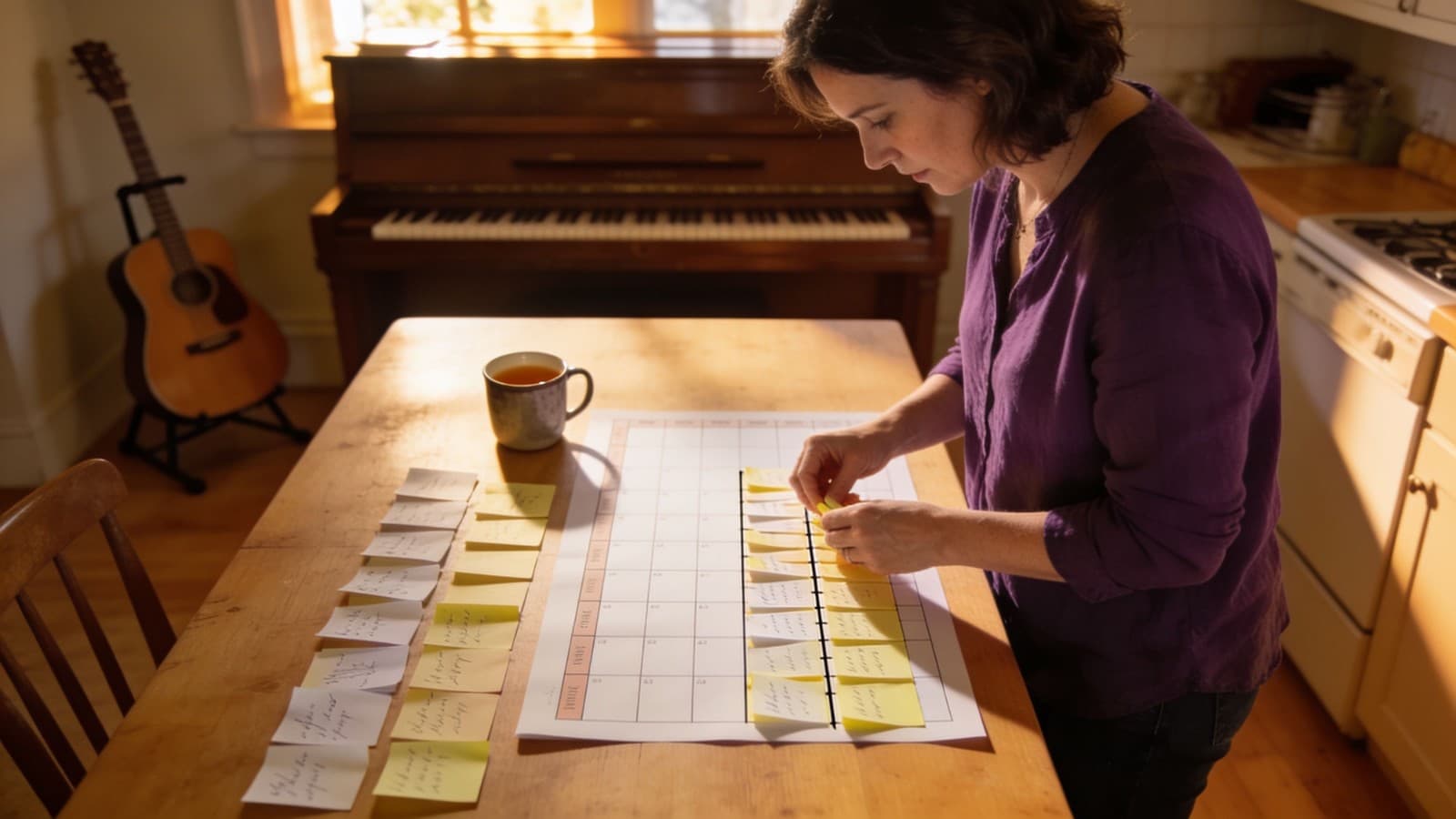
At the end of the summer break, most music teachers' kitchen tables look the same. There's a pile of scraps: the piano student who can only do Tuesdays from 4 pm because of after-school care. The violinist whose mum writes that Thursday is "basically always fine". The two siblings who should please go one after the other so a parent only drives once. On top of that, a dozen text messages, two callbacks, and a spreadsheet you haven't opened since last September.
Thirty replies, each in a different format, and out of them you're meant to build a weekly plan that actually works. That's the scheduling week. It comes once a year, it reliably eats a whole weekend, and it still has to be right, because a crooked timetable stays with you until Christmas.
The good news: the sequence is always the same, and a clear order turns the puzzle into a routine.
This is about building the whole plan from scratch at the start of term. For the ongoing weekly structure that keeps it stable afterwards (fixed slots, buffers, waiting lists, holidays), see the weekly scheduling guide.
A clean process in five steps
Everything below works on paper. It isn't a software walkthrough, just the order that makes the difference.
1. Set your windows first, not your students. Before you write a single name, decide which days and hours you teach at all. Monday 2 to 7 pm, Wednesday 3 to 8 pm, no Fridays. If you teach in two places, each window carries its location too. These windows are your grid. Everything else only gets placed into it.
2. Collect availability in a structured way, not as free text. The real time sink isn't the planning, it's translating "Thursdays are basically always fine" into an actual time. So don't ask "when can you", give them the grid: which of your windows work, and which of those is a genuine preference? One consistent format for everyone saves you the follow-up questions. Ask for two or three possible times rather than a single one, or you'll re-place half of them later.
3. Place the most constrained students first. This is the step almost everyone gets wrong. Enter the easy cases first and you'll use up the exact slots the hard cases desperately need. Flip it: the child who can only do Wednesday at 5 goes on the sheet first. The flexible adult learner goes last. Whoever has the fewest options gets placed first, and the rest stays movable.
4. Couple what belongs together. Siblings back to back, so the trip is worth it. Children from the same school in one block after the bell, so your afternoon doesn't shatter into unusable half-hours. You set these couplings deliberately, while the grid is still empty enough to allow them. Later, they won't fit.
5. Send confirmations straight away, in writing. A finished plan in your head isn't a plan. As soon as a slot is set, the fixed time goes to the student: weekday, time, start date, and the location if you have more than one. In writing, in one place. That saves you the October message "wait, are we on at 4 or 4:30?".
Where paper hits its limits
The manual route carries you surprisingly far. It tips over in three places.
It tips over on volume. With twelve students you can sort it in your head; with thirty-five you can't. Past a certain number you can no longer reliably keep two lessons from overlapping, and a single missed double-booking costs you more time than half the planning did.
It tips over on changes. The grid is barely done when the one family that can't make it after all gets in touch. You move one slot, and three others start sliding. On paper, that means redrawing.
And it tips over on latecomers. Three families only reply once everything is already set. Now you're hunting by hand for the leftover gaps that match their lesson length.
How the scheduling assistant maps exactly these steps
Those five steps are the reason taktjam has a scheduling assistant. It doesn't take the decisions off your hands, just the sorting behind them.
You open a scheduling round and enter your teaching windows per weekday and location, which is step one. Every student or parent gets a password-free link: no account, no app, filled in in about two minutes. In the grid they mark which times "work", and may flag up to three of them as a preferred slot. That's step two, without the translating from free text.
From those replies the assistant computes collision-free proposals: it places the most constrained students first, keeps overlaps out, and puts siblings directly one after another, which is steps three and four. You keep the final word throughout. If a proposal isn't quite right, you move a slot with a click, and the plan shows you at once whether the target is free.
When you publish, the plan turns into recurring lessons. Students get their confirmation with the fixed time and a calendar file, which is step five, automatically instead of thirty-five times by hand. The assistant is included in every paid plan. What a student link looks like and what parents do with it is covered in the help centre.
Common questions
Do parents or students need an account? No. They open a password-free link, mark their possible times and send them off. No login, no app to install.
When should I start the scheduling? Sensibly, a few weeks before the first teaching day, so there's enough time for replies and room to plan calmly. You decide the date by which answers should come in.
What happens to families who don't reply in time? They don't fall through the cracks. You plan with the replies you have, then send the latecomers the leftover gaps that fit their lesson length.
The short version
- Windows first, names later. Your grid exists before anything gets placed into it.
- Collect availability in a structured way, not as free text, and always several possible times.
- Place the most constrained students first, the flexible ones last.
- Couple siblings and same-school blocks while the grid is still empty.
- Confirm straight away, in writing, in one place instead of ten chat threads.